The short version: Tap Today → read the session status → tap the Readiness action to open the checklist → mark each visible item Yes or No → complete the checklist → later, tap the session card to review the day in Day Detail.
1. Start on Today
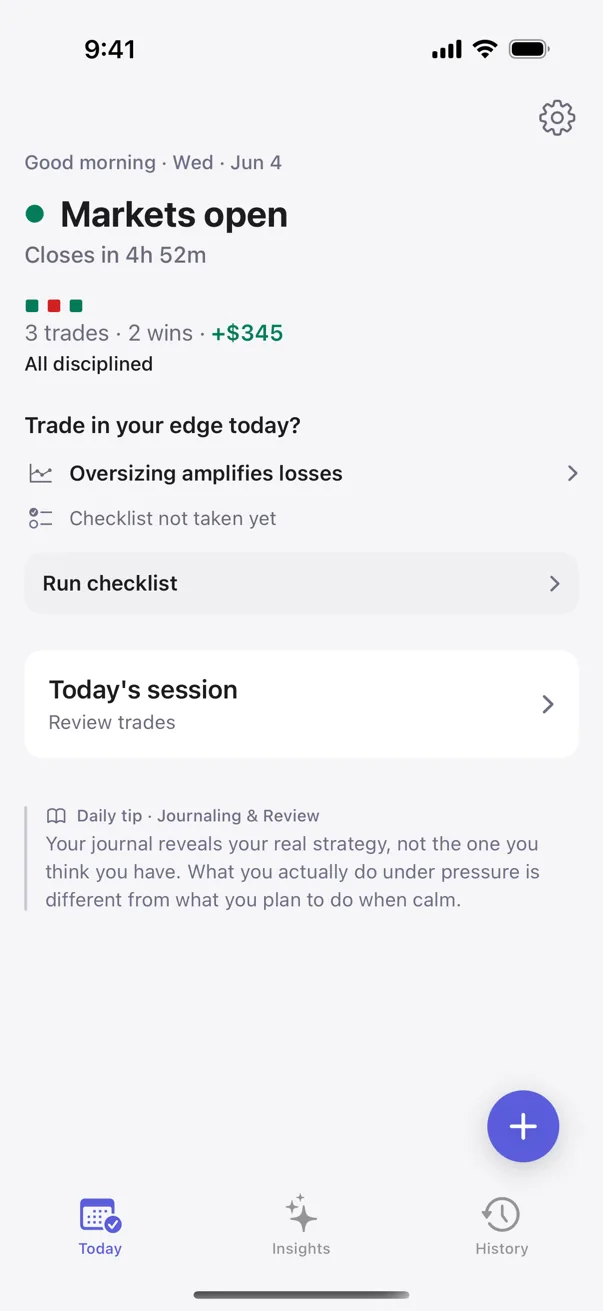
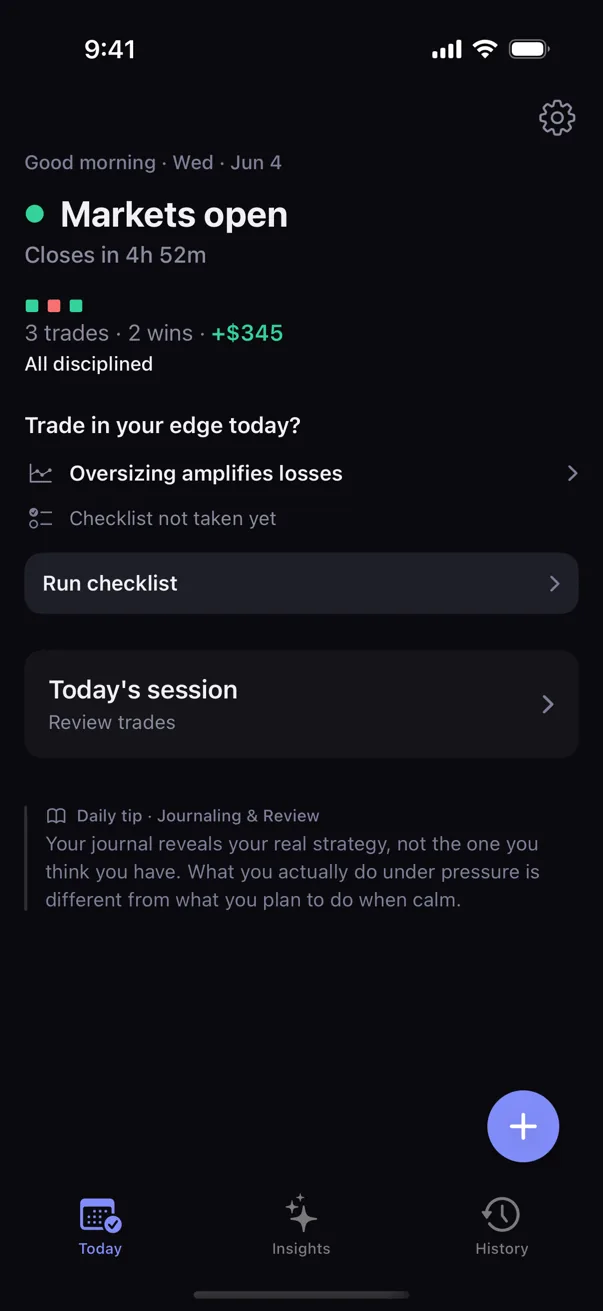
Today is the first tab in Kyra. The top of the screen changes with the market session and can show states such as Pre-market, Markets open, After-hours, or Markets closed.
When you have trades for the current day, Today can also summarize the day's P&L, wins, trade count, and a simple execution-quality line when Kyra has a clear signal to show.
2. Open Readiness before the next trade
When the current session supports pre-trade readiness, Today shows a Readiness area. Tap its primary action to open the Readiness checklist.
Kyra can also surface context in this area, such as a relevant personal pattern or a factual weekday heads-up. Those are observations from your journal, not instructions to take or avoid a trade.
3. Answer the checklist items
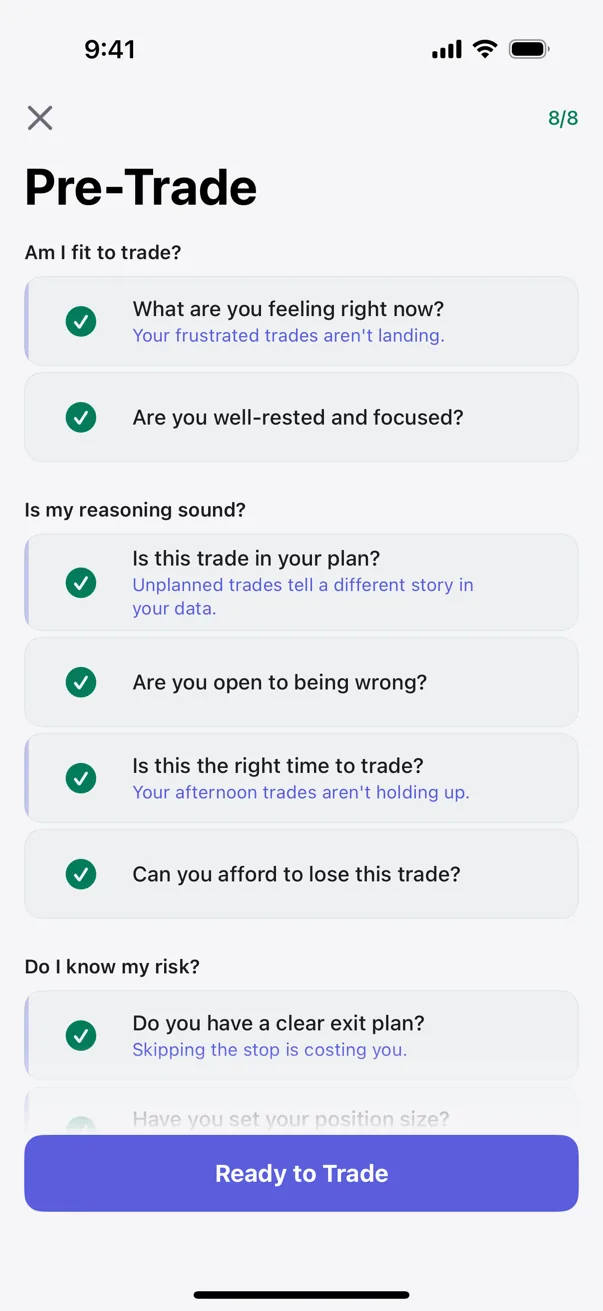
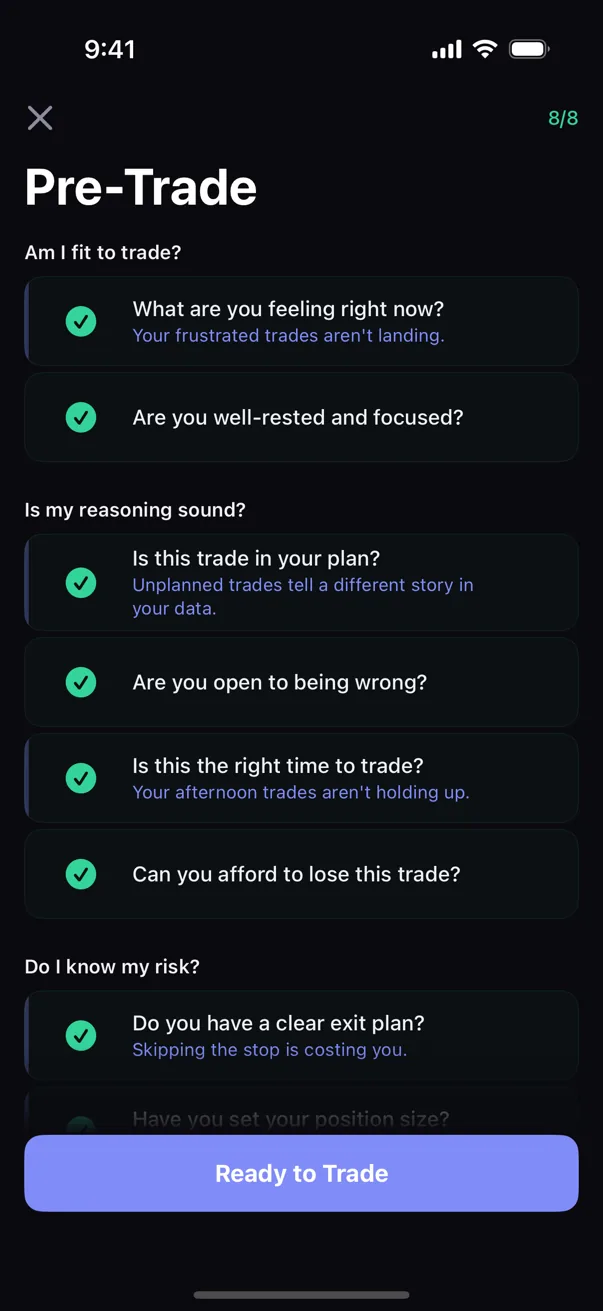
The checklist opens with a shorter set of high-signal items. Tap an item's answer control to mark your response. Each visible item can be Yes, No, or unanswered.
Tap Show full checklist if you want the longer version. Kyra can also expand the checklist automatically when it has a flagged item or context warning worth putting in front of you.
4. Complete Readiness
The completion button can read:
- Ready to Trade when the checklist is clear.
- Trade with Caution when the answers call for caution.
- Trade at High Risk when the checklist contains high-risk signals.
These labels describe the checklist state. Kyra does not block you from trading and the button is not a trade recommendation. Completing the checklist saves the session so Today and Day Detail can show that Readiness was completed.
5. If you leave before completing it
If you have already answered something and tap the X, Kyra asks whether you want to discard the in-progress checklist or keep editing. The sheet cannot simply be swiped away once it contains unsaved progress.
If you have not answered anything yet, closing the checklist returns you to Today without a discard prompt.
6. Reopening Readiness after completion
Once the day's checklist has been completed, Kyra shows a completed-state summary rather than asking you to complete the same daily session again. Today can reflect that completion in its Readiness area.
The exact per-item answers are primarily a device-local mirror. The saved checklist session keeps the durable completion summary used elsewhere in the app.
7. Move from Today into the session review
Later in the day, Today shows a session card whose title can change with context, including Today's session, Review today's session, or Close today's session.
Tap that card to open Day Detail, where Kyra brings together the day's trades, checklist recap, and journal note. On weekends or market holidays, the card can instead point you toward recent sessions.
For the full Day Detail flow, see How to use Day Detail and journal notes.
8. If you have never logged a trade
Today uses a first-run card that points you toward Log Trade. You can start there, or explore sample data if you want to see Kyra with a populated journal before entering your own trades.
If Today or Readiness does not look the way you expect
I do not see Readiness
Readiness is session-aware. It is not shown in every market state. The rest of Today can still be used normally.
The checklist opened already expanded
That can happen when Kyra has flagged an item or has context it considers important enough to surface in the full checklist.
The bottom button says Trade with Caution or Trade at High Risk
That reflects your checklist state. Kyra does not place trades, block trades, or tell you what position to take.
I tapped X and got a discard confirmation
You have unsaved checklist progress. Choose the discard action if you want to throw it away, or keep editing to return to the checklist.
I completed Readiness but Day Detail does not show the individual answers exactly as I remember them
The precise per-item Yes/No mirror is device-local, while the durable checklist session stores the completion summary. A reinstall or reopening on another device can therefore show a best-effort completed state rather than the exact original per-item distribution.
I still cannot tell what state I am looking at
Email support@kyratrading.app and tell us which Today or Readiness label you see. You do not need to send your trading history.
Verified against Kyra 1.6 (build 54), released August 20, 2026. The Today and Readiness images above are real released-app captures with light/dark parity.