The short version: From a main Kyra tab, tap the + button at the bottom right → choose Long or Short → select a ticker → enter your Profit or Loss → tap Save Trade.
1. Open Log Trade
- Open Kyra on your iPhone.
- Go to the top level of any main tab.
- Tap the round + button at the bottom right.
Kyra opens the Log Trade screen. If you do not see the + button, back out of the screen you are viewing until you are at a main tab.
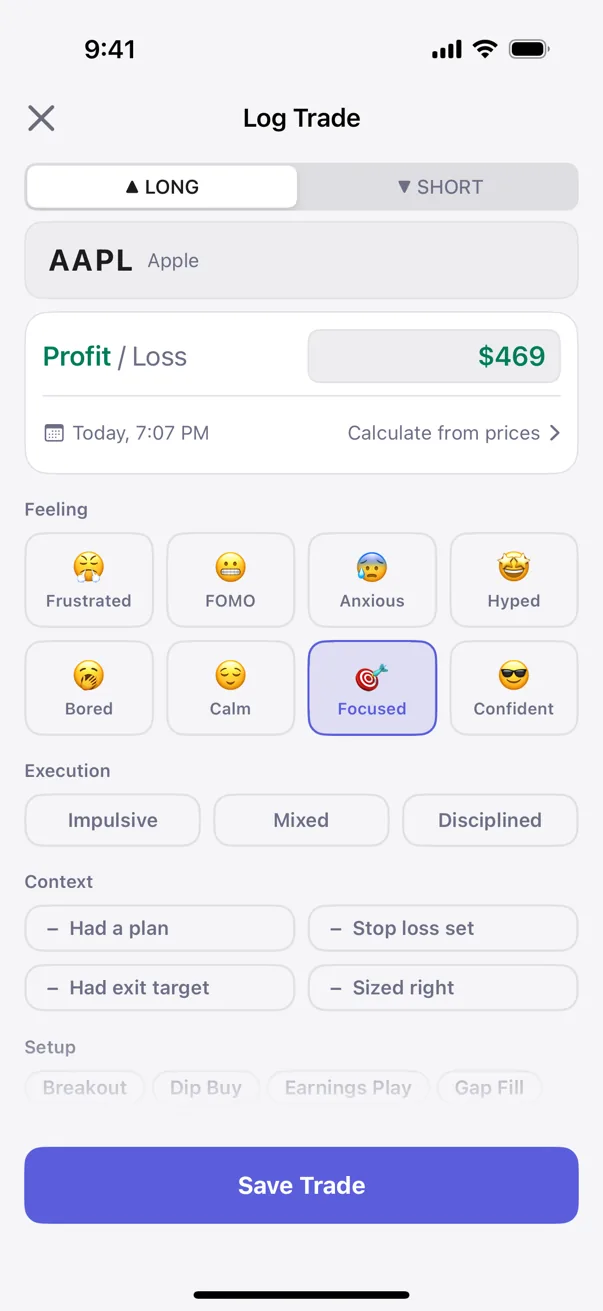
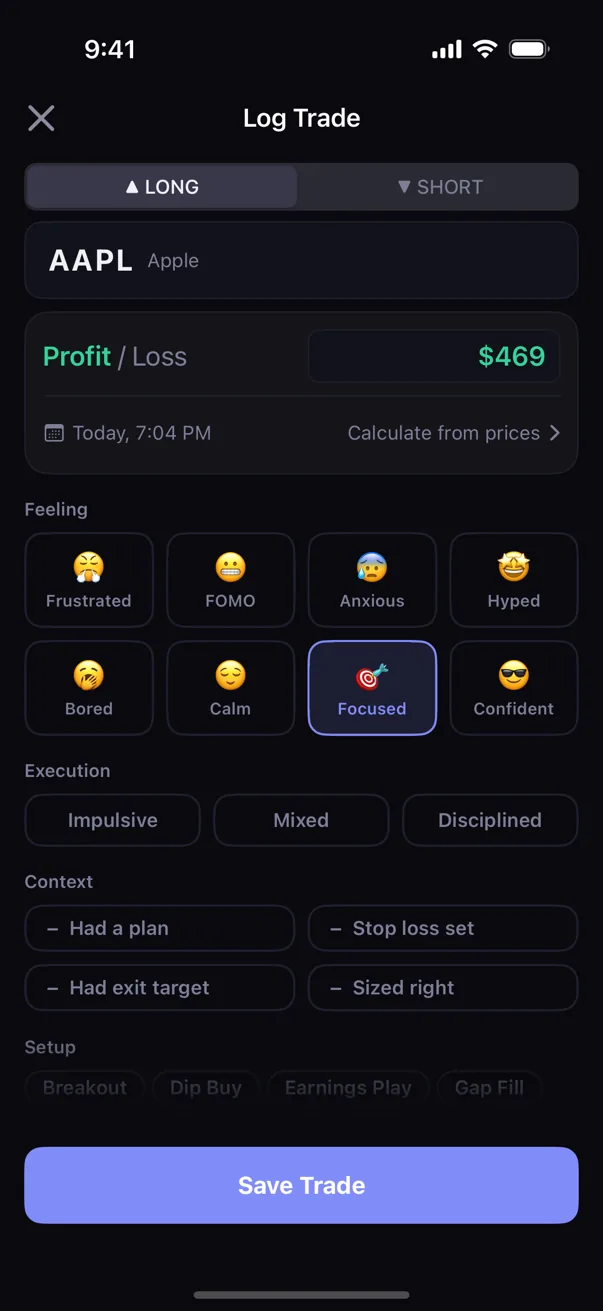
2. Choose Long or Short
The form starts on Long. Tap Short if the trade was short. Direction is part of the trade record and is also used if you ask Kyra to calculate P&L from entry and exit prices.
3. Select the ticker
- Tap the ticker field.
- Search by ticker symbol or company name.
- Tap the matching symbol.
Ticker is required. If Kyra does not find the symbol in its search list, the search screen lets you use the symbol you typed anyway.
4. Enter your profit or loss
Quick P&L is the fastest way to save a trade. The form starts with Profit selected.
- For a winning trade, leave Profit selected and enter the amount, such as
125.40. - For a losing trade, tap the Profit/Loss control so Loss is selected, then enter the loss amount as a positive number, such as
80.00. You do not need to type a minus sign. - For breakeven, enter
0.
The trade date defaults to the current day. Tap the date in the P&L card before saving if you are logging an older trade.
Want Kyra to calculate the P&L?
Tap Calculate from prices. Enter Entry, Exit, and Quantity; Kyra calculates the result using the Long/Short direction. Stop is optional. If you start entering price fields, complete the required price fields or return to Quick P&L before saving.
5. Add context if it is useful
Everything below the trade facts is optional. You can record:
- Feeling — how you felt around the trade.
- Execution — whether the execution was disciplined, mixed, or impulsive.
- Setup — the setup or playbook tag.
- Context — whether you had a plan, stop loss, exit target, and appropriate size.
- Notes — anything you want to remember later.
You do not have to fill every field to save the trade. A small, honest record is better than abandoning the entry because every optional field is not available.
6. Save the trade
- Check the ticker, direction, and P&L.
- Tap Save Trade at the bottom of the screen.
- Kyra confirms the save and closes the form.
The trade is now in Journal. If it is dated today, it also contributes to today's summary in Kyra.
If you cannot save the trade
Save Trade does not work
Tap Save Trade once. Kyra highlights the first required field that needs attention. The usual causes are a missing ticker or a missing/invalid P&L amount.
The ticker is not in search results
Type the symbol you want. If there is no match, use the option to keep the symbol you entered. Double-check the symbol before saving.
I saved a loss as a profit
For Quick P&L, choose Loss and type the size of the loss as a positive number. If the trade is already saved, open it from Journal and edit it.
I opened Calculate from prices and now Kyra will not save
When price calculation is in use, Kyra needs valid Entry, Exit, and Quantity values. Finish those fields, or switch back to Quick P&L and enter the result directly.
I used the wrong date
Before saving, tap the date in the P&L card and choose the correct trading day. If you already saved the trade, open it from Journal and edit it.
I still cannot log the trade
Email support@kyratrading.app. Tell us which step you reached and what happened after you tapped Save Trade. You do not need to send your trading history.
Verified against Kyra 1.6 (build 54), released August 20, 2026. The screenshots above are real Kyra captures.