The short version: In Kyra, open Settings → Data → Import Trades from CSV, tap Choose File, select your CSV, review the preview, then tap the import button.
1. Prepare your CSV file
A CSV is a plain spreadsheet file. If your trades are in Excel, Numbers, Google Sheets, or another journal, export or download them as CSV first.
Kyra needs these four columns:
| Column | Example | What it means |
|---|---|---|
| Date | 2026-09-10 | The trade date. YYYY-MM-DD is the simplest format. |
| Ticker | AAPL | The symbol you traded. |
| Direction | Long | Use Long or Short. |
| P&L | 125.40 | Your result. Use a negative number for a loss, such as -80.00. |
Other columns are optional. Kyra can also use fields such as entry price, exit price, position size, emotion, setup, execution rating, and reflection when they are present.
The smallest valid example
Date,Ticker,Direction,P&L
2026-09-10,AAPL,Long,125.40
2026-09-11,TSLA,Short,-80.00
If you would rather start from a known-good file, use the Kyra CSV template. You can also read the template guide before filling it in.
2. Open the import screen in Kyra
- Open Kyra on your iPhone.
- Open Settings.
- Scroll to the Data section.
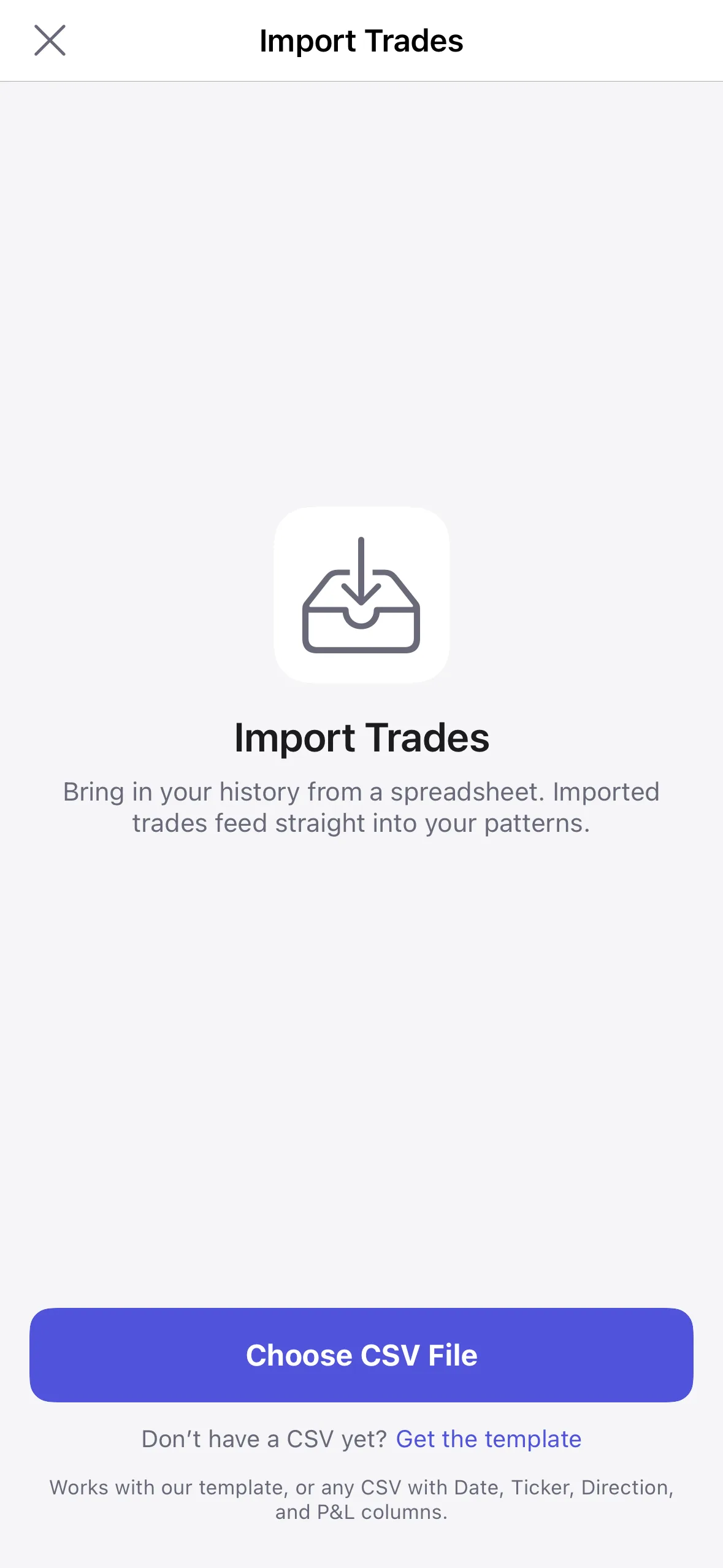
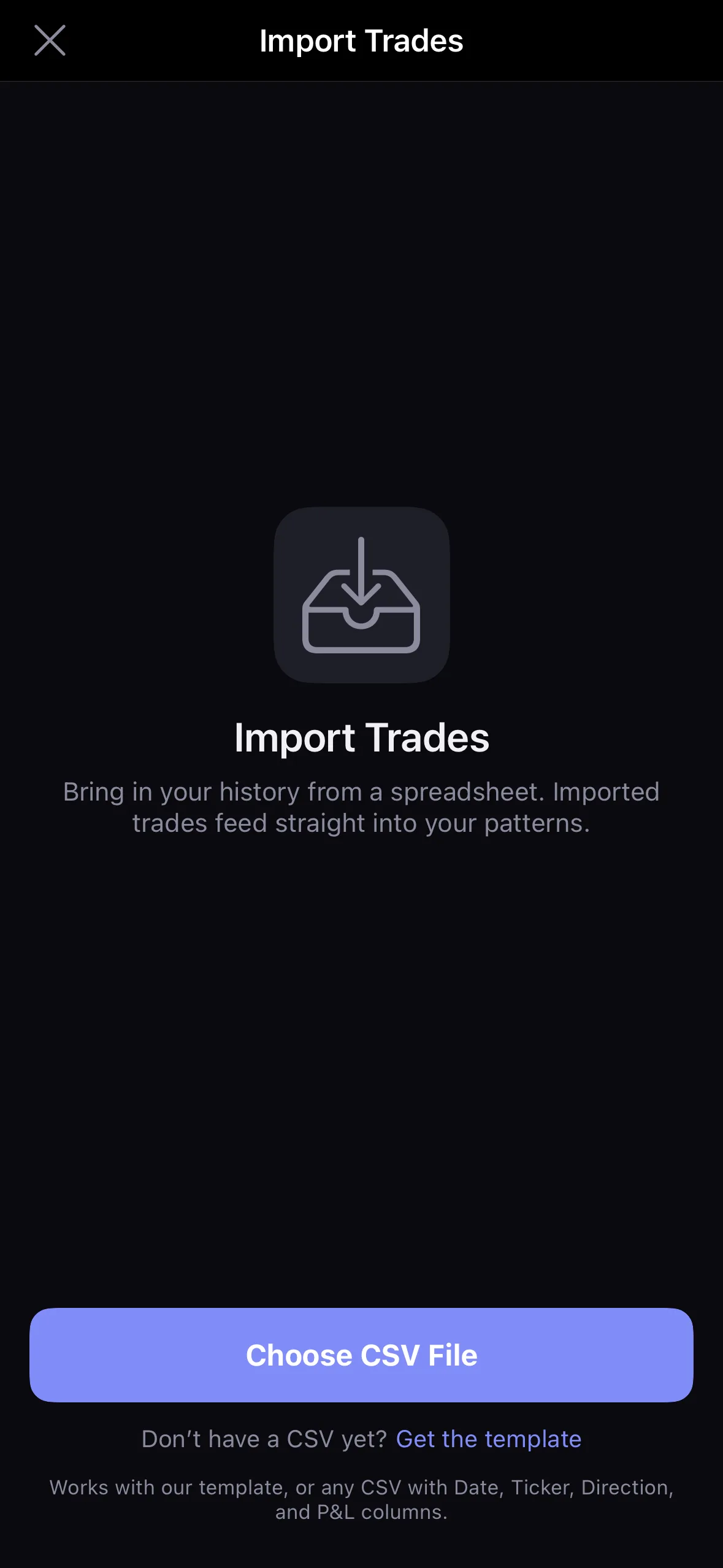
- Tap Import Trades from CSV.
The import screen also has a Get the template link if you want Kyra to create the starter CSV directly on your phone.
3. Choose your CSV
- Tap Choose File.
- The iOS Files picker opens.
- Find your CSV in iCloud Drive, On My iPhone, Downloads, or another location available in Files.
- Tap the CSV file.
Kyra reads the file locally on your device. The import does not upload your trades to a Kyra server.
4. Review the import preview
Kyra checks the file before saving anything. The preview shows four counts:
| Count | Meaning |
|---|---|
| Total | Trade rows Kyra found in the file. |
| Ready | Valid rows that can be imported. |
| Duplicates | Rows Kyra recognizes as already present or repeated in the file. They are skipped. |
| Invalid | Rows with data Kyra cannot safely import. The preview shows the affected line numbers and reason. |
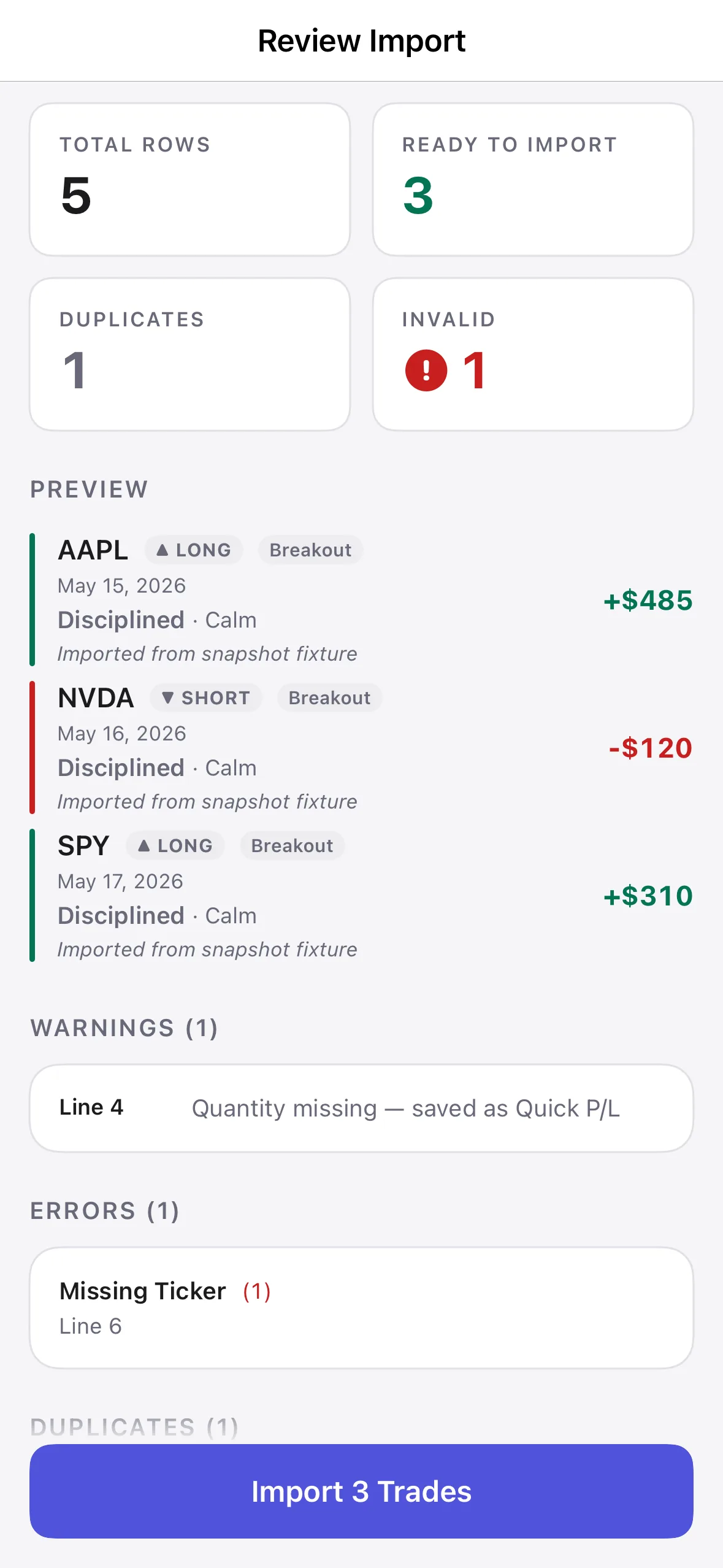
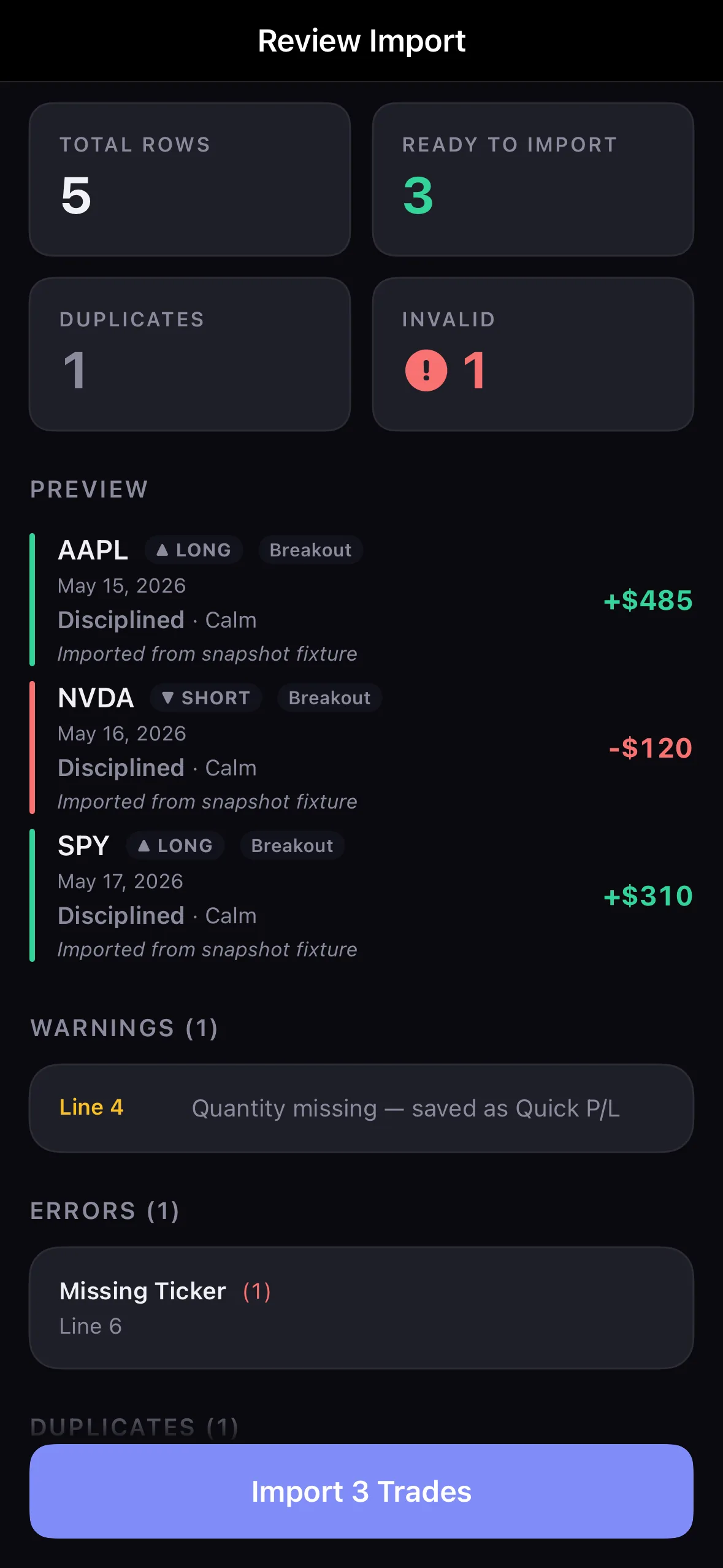
If some rows are invalid but other rows are ready, you can still import the ready rows. If you prefer, cancel, fix the CSV, and choose it again.
5. Import the ready rows
- Check the preview and the sample trades.
- If the counts look right, tap the import button at the bottom.
- Wait for Kyra to finish importing.
- Open Journal to review the imported trades.
Importing the same file again does not intentionally create another copy of trades Kyra already recognizes. Duplicate rows are listed in the preview and skipped.
If the import is not working
The file does not appear when I tap Choose File
Make sure the file ends in .csv. An Excel .xlsx file or an Apple Numbers document is not a CSV. Export it as CSV first, then save it somewhere visible in the iOS Files app.
Kyra says a required column is missing
Make sure the first row contains Date, Ticker, Direction, and P&L. The fastest fix is often to copy your data into the Kyra template.
Rows show as invalid
Look at the line numbers and reason in the preview. Common fixes are:
- Use a date such as
2026-09-10. - Use
LongorShortfor Direction. - Use a plain number for P&L, such as
125.40or-80.00. - Check that commas inside notes are enclosed in quotation marks.
- Check that each row lines up with the header columns.
Everything is listed as a duplicate
That usually means those trades are already in Kyra. Duplicates are skipped so a repeated import does not intentionally add the same history again.
I still cannot get the file to import
Email support@kyratrading.app. You do not need to send your full trading history. Start with the CSV header row and one example row that fails, with any sensitive values replaced if you prefer.
For the product overview and privacy details, see CSV import and export in Kyra. If you are moving from an existing spreadsheet, see From spreadsheet to trading journal.