The short version: Open Today → scroll to the session card, such as Review today's session or Close today's session → tap it → review the day's trades and checklist → tap Journal note to add or edit your note → tap the checkmark to save.
1. Open Day Detail from Today
- Tap Today in Kyra.
- Scroll to the session card below the readiness area.
- Tap the card. Depending on the state of the day, its title can read Today's session, Review today's session, or Close today's session.
In Kyra 1.6, this Today session card is the route into the dedicated Day Detail screen. Journal Calendar has its own inline day sheet; selecting a calendar day does not navigate to this same full Day Detail screen.
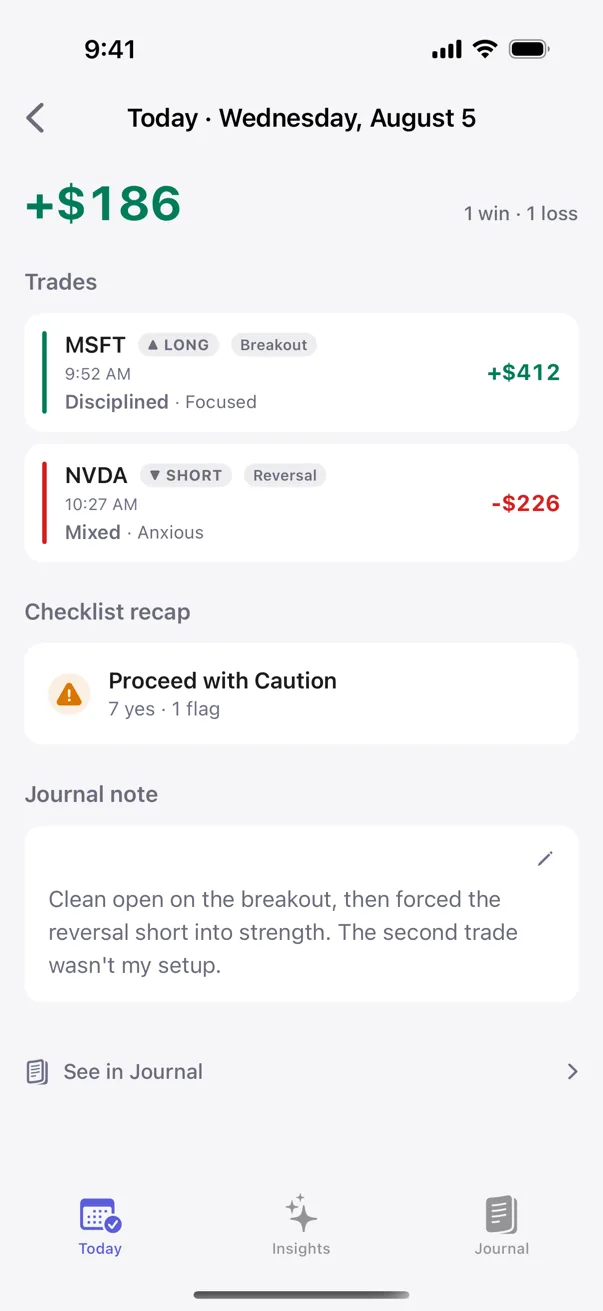
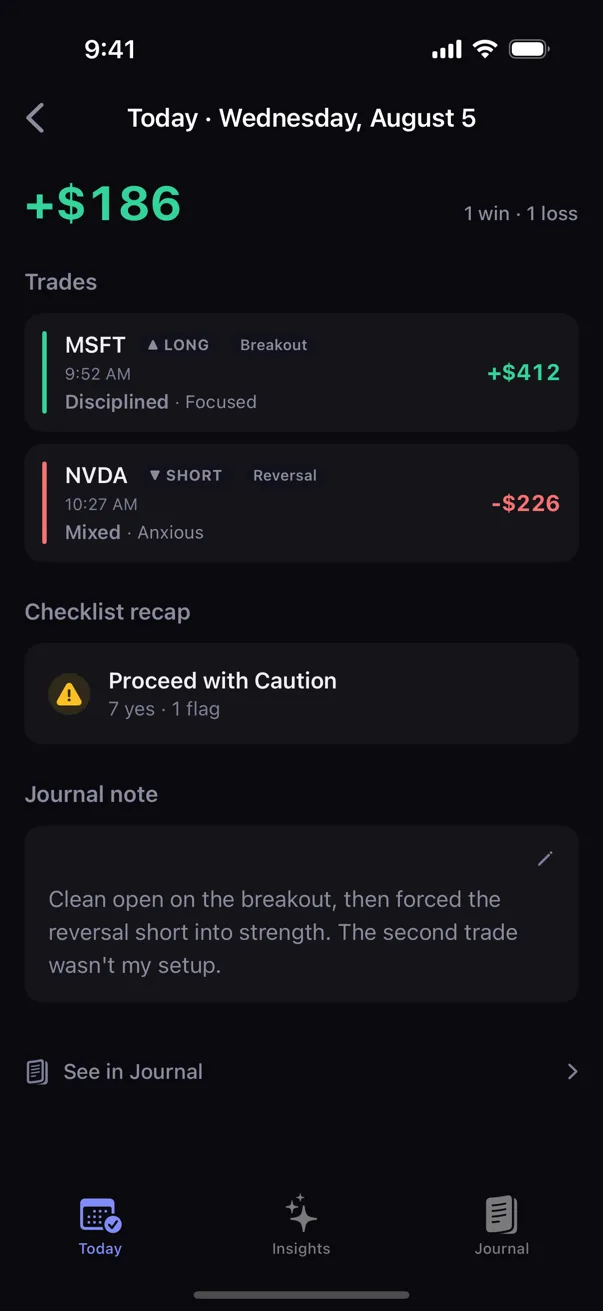
2. Read the day from top to bottom
Day Detail can contain four pieces of the session record:
- Day result — net P&L and win/loss summary when the day has trades.
- Trades — the active trades from that day. Tap a trade to open its Trade Detail screen.
- Checklist recap — shown when Kyra has a checklist session to summarize for that day.
- Journal note — your day-level reflection or observation.
If the day has trades, a quiet See in Journal row appears near the bottom and takes you back to the trade-record view. Kyra intentionally omits that row on a no-trade day because there are no trades for Journal to show for that session.
3. Add a journal note
- Find the Journal note section.
- If no note exists yet, tap the note card.
- Kyra opens the Journal note editor.
- Write what you want to remember about the session.
- Tap the checkmark at the top right to save.
On a trading day, the prompt asks what you noticed about the market. On a no-trade day, the prompt changes to what you want to remember about the day.
4. On a no-trade day, you can add optional context
If the day has no trades, the note editor also shows Optional reason for not trading chips. They are context for a sit-out day, not a required field.
Those reason chips do not appear on a day that already has trades. Kyra keeps the reason attached only to genuine no-trade days.
5. Edit an existing note by tapping the saved note itself
There is no separate Edit button next to a saved journal note. The saved note card is the edit target.
- Tap the saved note card.
- Edit the text.
- Tap the checkmark to save the new version.
The editor enables Save only after something has changed.
6. Know the editor safeguards
- New journal notes have a 500-character limit.
- A character counter appears as you approach the limit.
- If you tap Cancel after making changes, Kyra asks whether to discard them or keep editing.
- The note editor cannot be casually swiped away; use the explicit Cancel or Save controls.
- If an older imported or synced note is already longer than the current limit, Kyra preserves the loaded length rather than silently truncating it while you edit.
7. To remove a saved note, clear its text and save
Open the saved journal note, remove the text, and tap Save. Kyra removes that active day note rather than storing an empty note.
This affects the day-level journal note only. It does not delete the trades on that day.
If Day Detail does not look the way you expect
I tapped a day in Journal Calendar and got a sheet instead
That is expected in Kyra 1.6. Calendar selection uses an inline day-detail sheet. The dedicated Day Detail screen described here opens from the Today session card.
I do not see Checklist recap
The recap appears only when Kyra has a checklist session for that day. A missing recap does not mean the rest of the day record is incomplete.
I do not see See in Journal
Kyra shows that handoff only when the day contains trades. A no-trade day stays focused on the session note rather than linking to an empty Journal scope.
I do not see the no-trade reason chips
They appear only when the selected session has no trades. On a trading day, the journal note remains free-form without a sit-out reason.
The Save button is disabled
Make a change to the note or, on a no-trade day, to its optional reason. The checkmark remains disabled when nothing has changed.
I cannot swipe the note editor away
That is intentional. Use the X to cancel or the checkmark to save so an in-progress note cannot disappear accidentally.
My note would not save
Kyra shows a safe error message if the note cannot be read or saved. Try again. If the problem persists, email support@kyratrading.app and tell us which day you were reviewing. You do not need to send the note text.
Verified against Kyra 1.6 (build 54), released August 20, 2026. The Day Detail screenshots above are real released-app captures with light/dark parity.