The short version: Open the Journal tab → tap a trade to review it → use the search button to find ticker, setup, or note text → use Filter & sort for outcome, setup, emotion, period, and sort order → switch to Calendar when you want to review by day.
1. Open Journal
- Open Kyra on your iPhone.
- Tap Journal in the tab bar.
On a normal visit, Journal opens in List view. Your trades are grouped by trading day when you use a date-based sort, with a compact summary above the list.
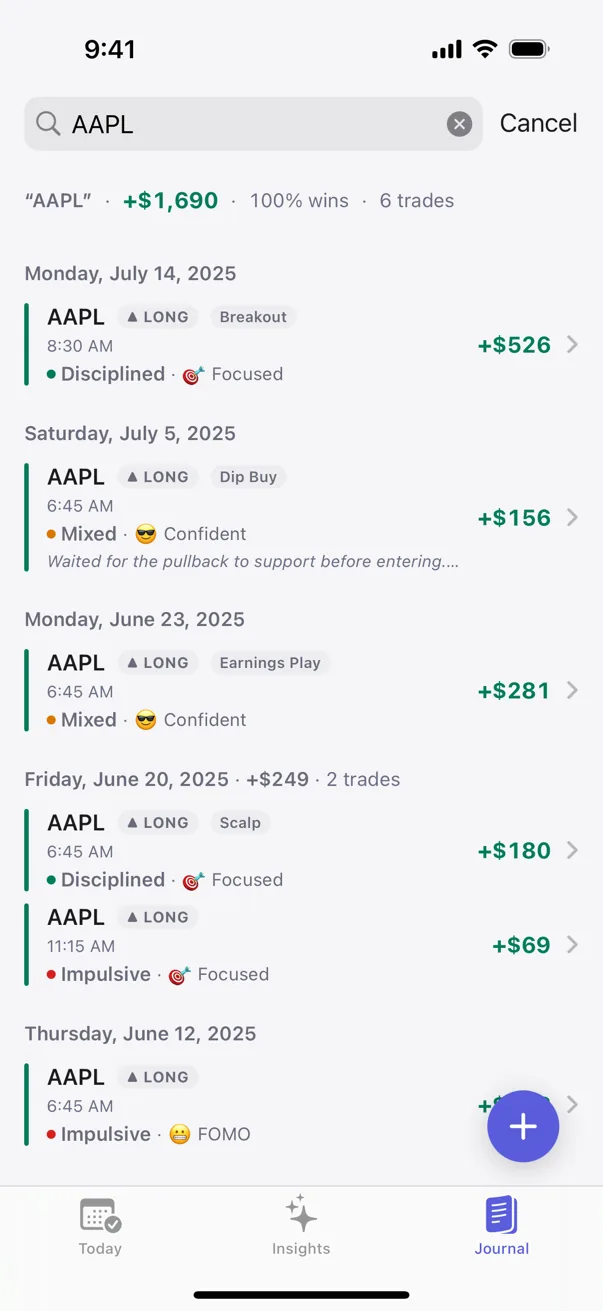
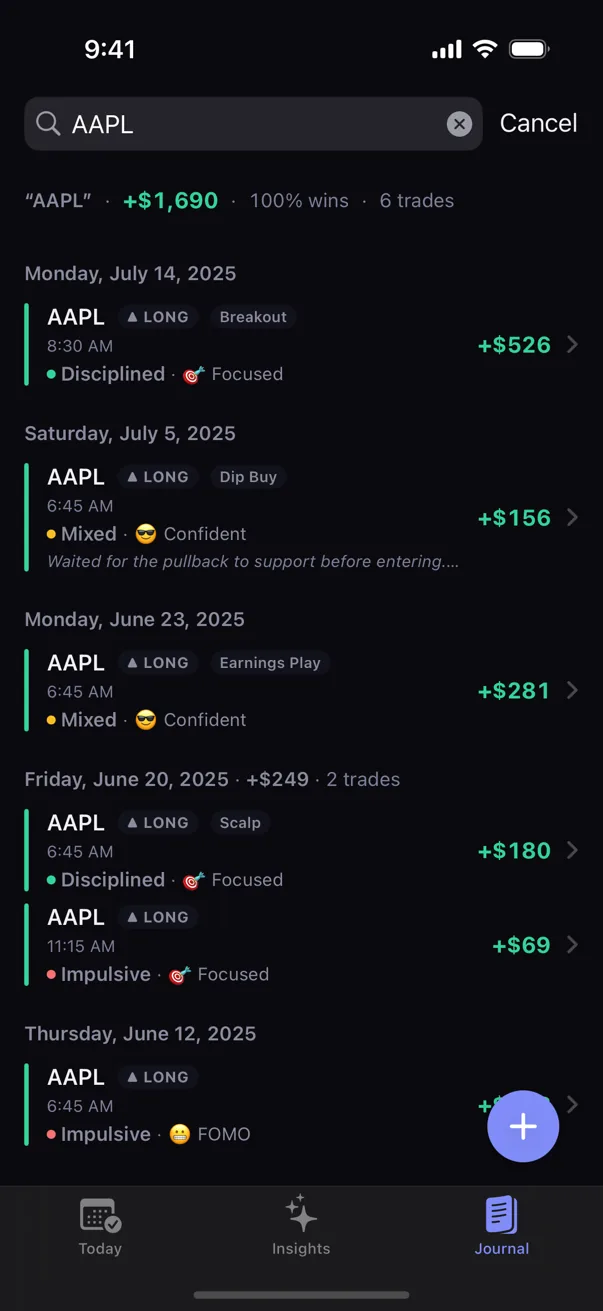
2. Open a trade
Tap any trade row to open that trade's detail screen. From there you can review the complete record. Editing and deletion are covered separately because they change data rather than only reviewing it.
3. Search your journal
- Make sure Journal is in List view.
- Tap the magnifying glass in the top toolbar.
- Type what you remember about the trade.
Search checks ticker, setup, and notes. That means a query can find a symbol such as AAPL, a setup name such as Breakout, or words you wrote in the trade note.
Use Cancel or clear the search text when you want the full journal again. Search is a List-mode tool, so switch back from Calendar if the search button is not available.
4. Filter or sort the trades you see
Tap the Filter & sort control in the Journal toolbar. Kyra gives you two kinds of controls: scope/filter controls that decide which trades are included, and sort controls that decide their order.
Filter by outcome
Choose All, Wins, or Losses when you want to review one outcome group.
Filter by setup, emotion, or period
You can narrow the journal using the context already attached to your trades:
- Setup — one or more setup tags that exist in your journal.
- Emotion — one or more recorded emotional states.
- Period — All time, Last 7 days, Last 30 days, Last 90 days, Last 12 months, or a Custom range.
When filters are active, Journal marks the filtered state so you are not looking at a partial set without knowing it. Clear the active filters when you want to return to all trades.
Sort the list
List view can be sorted by Newest, Oldest, Biggest win, Biggest loss, or Ticker A–Z. Date sorts keep the journal grouped by day; the other sorts prioritize the chosen ranking instead.
5. Switch to Calendar
Use the Journal view control in the toolbar to switch from List to Calendar. Calendar places P&L in time so you can review what happened on a specific day or across a visible period.
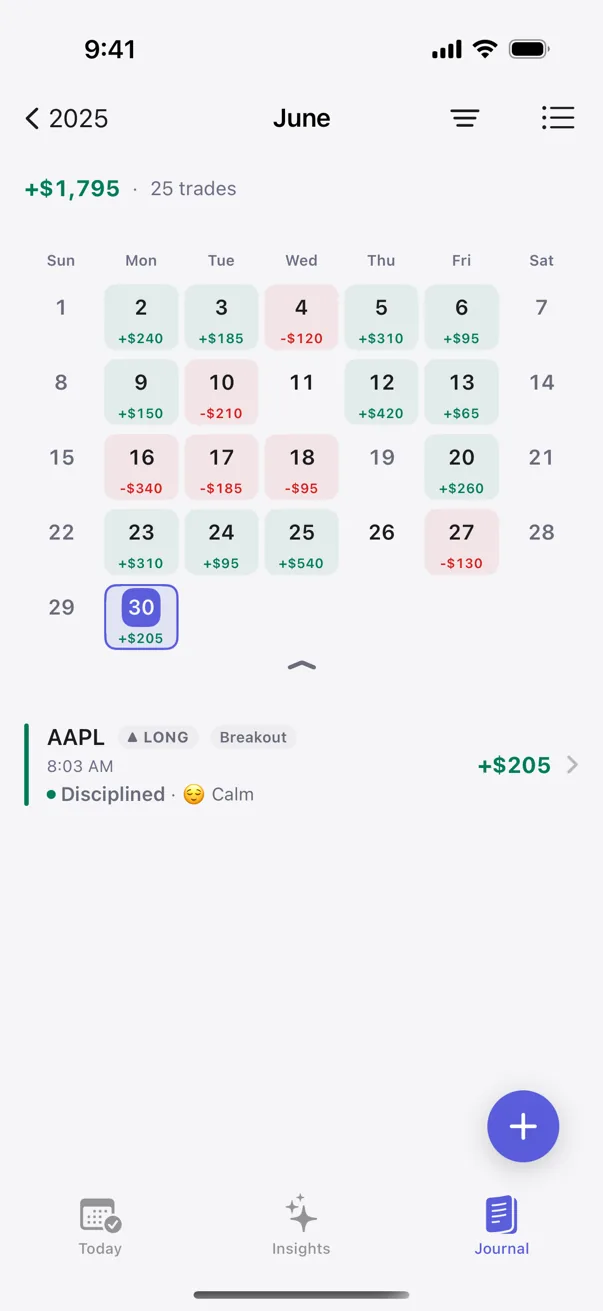
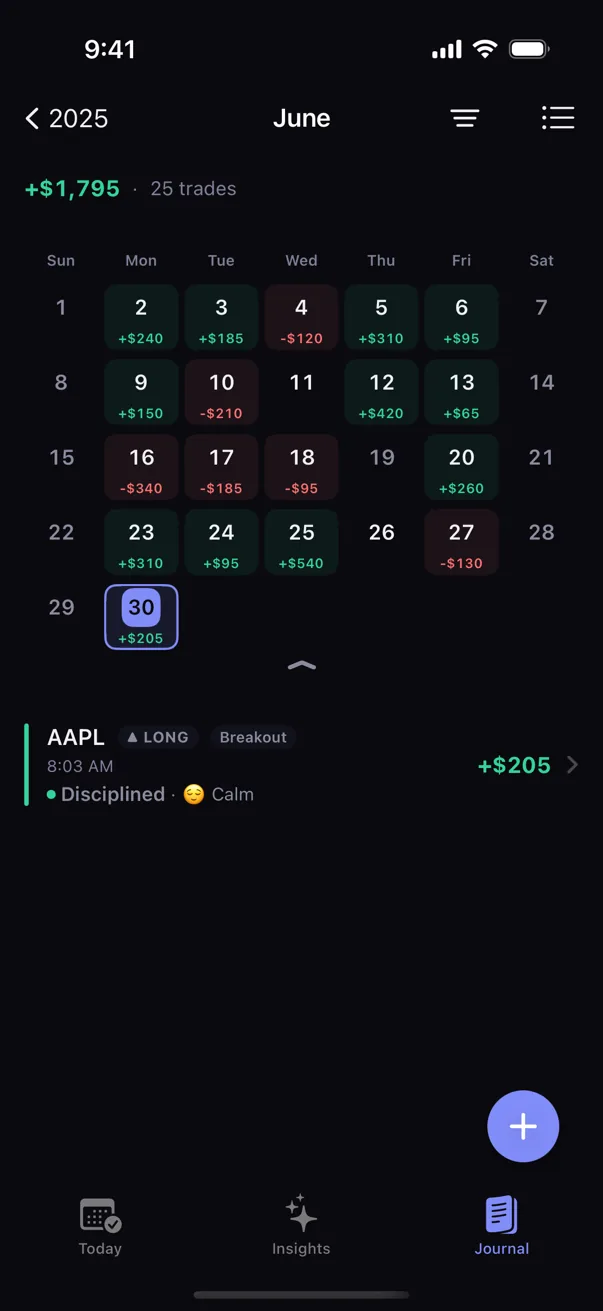
Tap a day to scope the trade list below the calendar to that day. Calendar can move between week, month, and year views. You can also turn on Always show weekends if you want a stable seven-day calendar even when your journal has no weekend trades.
Why did my date filter disappear?
This is expected. Calendar itself becomes the time-period selector, so Kyra clears the List date-range facet when you switch into Calendar. This prevents a hidden date filter from disagreeing with the period you can see on the calendar.
6. Understand an empty result
An empty Journal does not always mean your trades are gone:
- No trades yet means the journal itself is empty.
- No matching trades means a search or filter is active but nothing in the journal matches it.
- In Calendar, No trades means the selected day or visible period simply has no trades. If filters are active, Kyra uses a separate no-matching-trades state.
If you expected to see a trade, clear search and filters first before assuming the record is missing.
If Journal is not showing what you expect
I cannot find an older trade
Return to List, clear any active search, choose All outcomes, and remove Setup, Emotion, or Period filters. Then search the ticker or note text again.
I do not see Search or Sort
You are probably in Calendar. Search and sort belong to List review. Switch Journal back to List.
The calendar shows no trades on a day that looks active
Check whether a filter is still active. A day can contain trades in the journal while the currently filtered result contains none. Clear the filter to compare against the full record.
The date-range filter disappeared after I opened Calendar
That is intentional. Calendar owns the visible time period. Switch back to List and set the Period filter again if you want a filtered list such as Last 30 days.
Weekend columns are missing
Calendar can hide unused weekend columns. Turn on Always show weekends if you want Saturday and Sunday to remain visible even when there are no weekend trades.
I still cannot find the trade I expected
Email support@kyratrading.app. Tell us whether you were in List or Calendar and which search or filters were active. You do not need to send your trading history.
Verified against Kyra 1.6 (build 54), released August 20, 2026. The screenshots above are real Kyra captures.