The short version: Open Journal → tap the trade → tap ••• → choose Edit Trade or Delete Trade. After deleting, tap Undo delete if the toast is still visible. If you miss it, open Settings → Data → Recently Deleted and tap Restore.
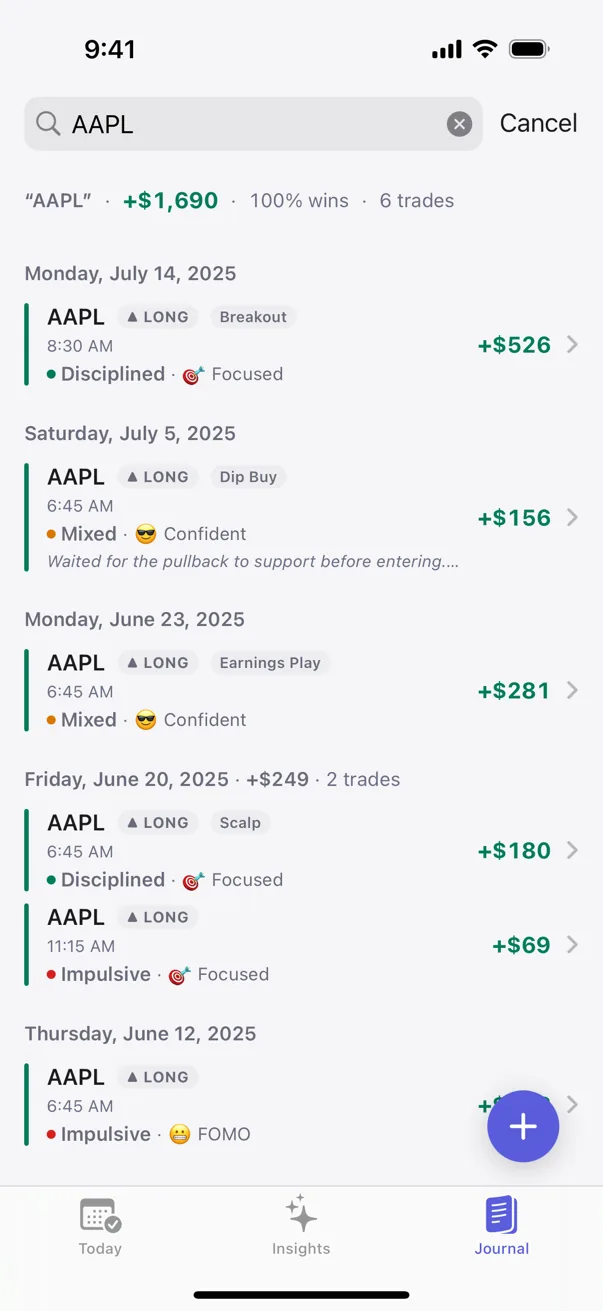
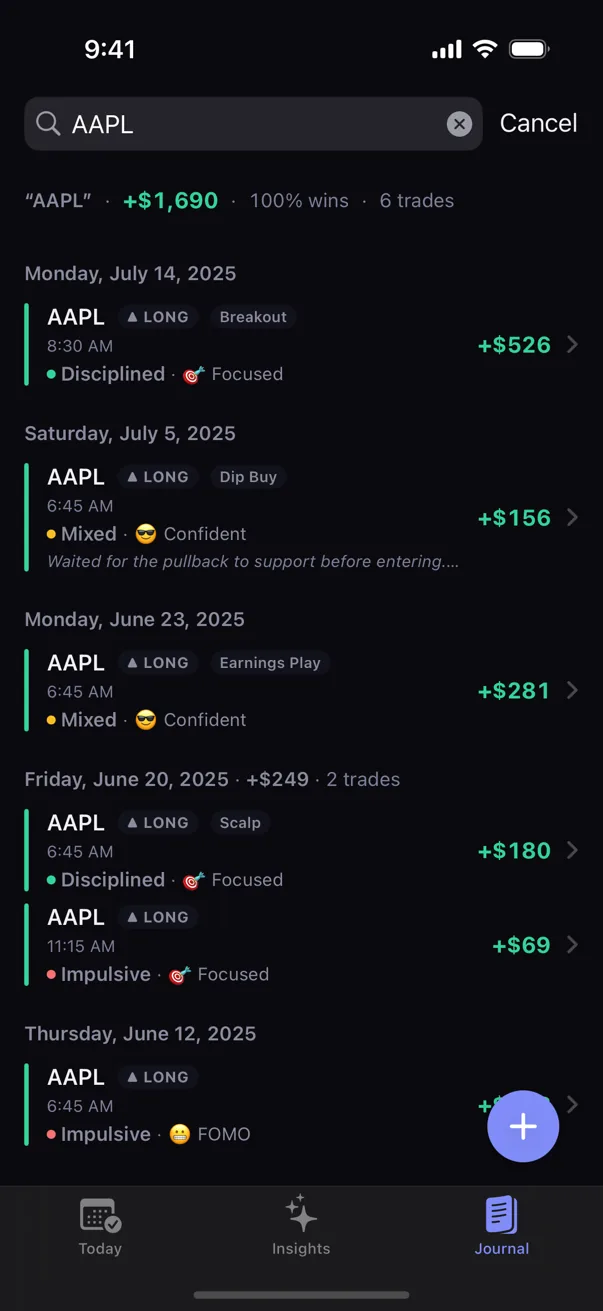
1. Open the saved trade
- Open Kyra on your iPhone.
- Tap Journal in the tab bar.
- Find the trade in List or Calendar and tap its row.
Kyra opens the trade detail screen. The trade-management actions live in the ••• menu at the top right.
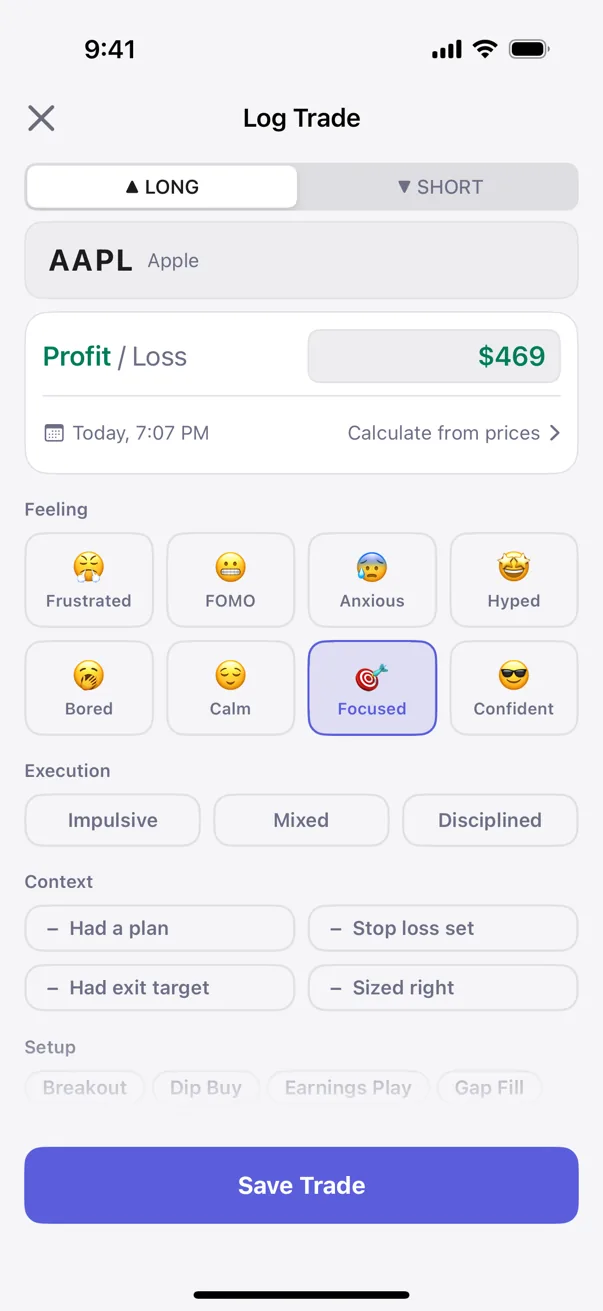
2. Edit a saved trade
- On the trade detail screen, tap ••• at the top right.
- Tap Edit Trade.
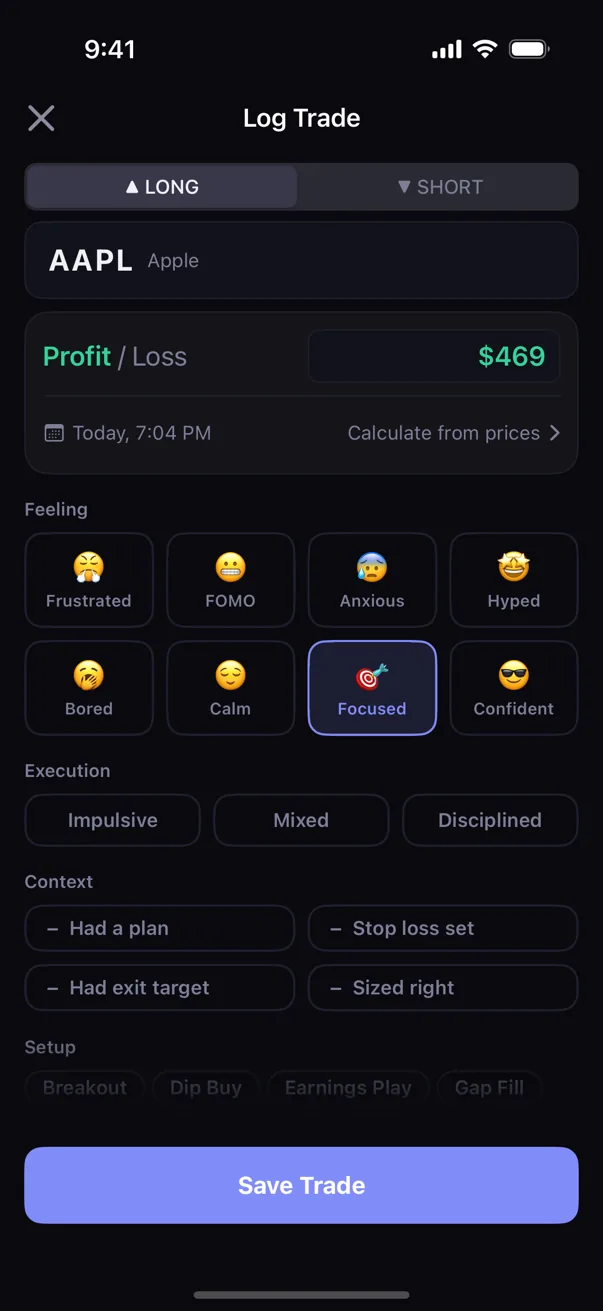
- Kyra opens the trade-entry form with the saved trade already filled in.
- Change the ticker, direction, P&L, date, prices, context, setup, feeling, execution, or notes as needed.
- Tap Save Changes.
You are updating the existing record, not creating a second trade. When the form closes, the corrected values are reflected in Journal and in the rest of Kyra's summaries and analysis.
3. Delete a trade
- Open the trade detail screen.
- Tap •••.
- Tap Delete Trade.
Kyra returns to Journal and removes the trade from the active journal. The deletion is recoverable: the trade is soft-deleted first rather than immediately erased.
4. Undo immediately if the deletion was a mistake
After a trade is deleted, Journal shows an Undo delete action. Tap it while the toast is still visible to restore the trade immediately.
If the toast has already disappeared, you do not have to recreate the trade. Use Recently Deleted instead.
5. Restore a trade from Recently Deleted
- Open Settings from Kyra.
- Scroll to the Data section.
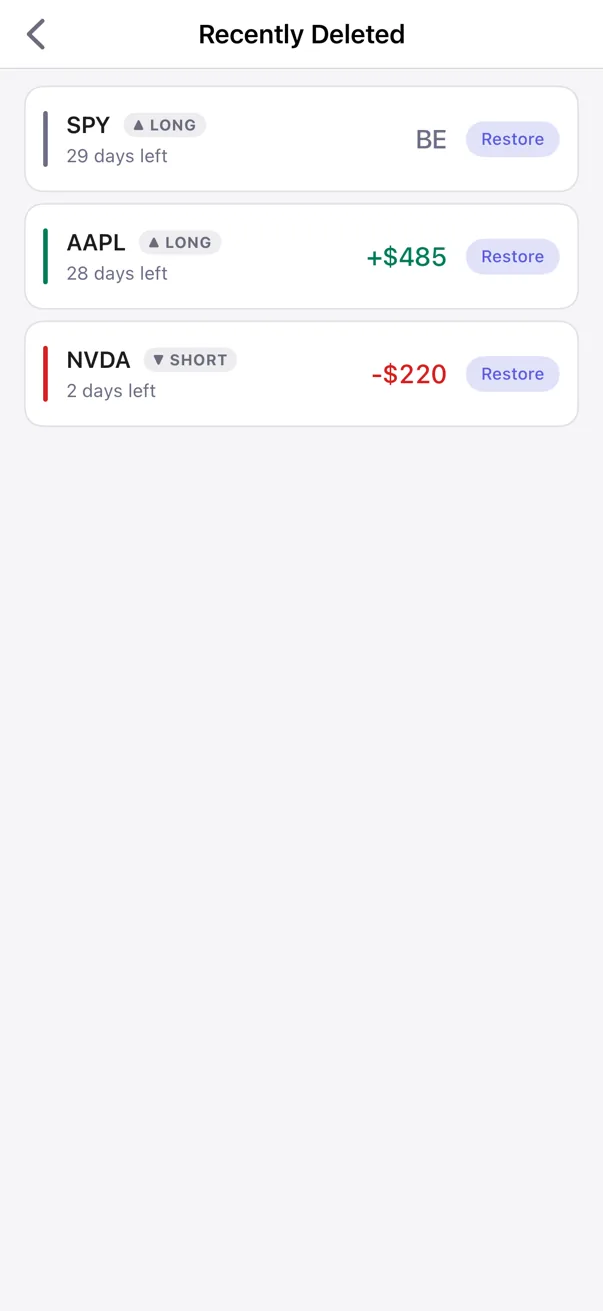
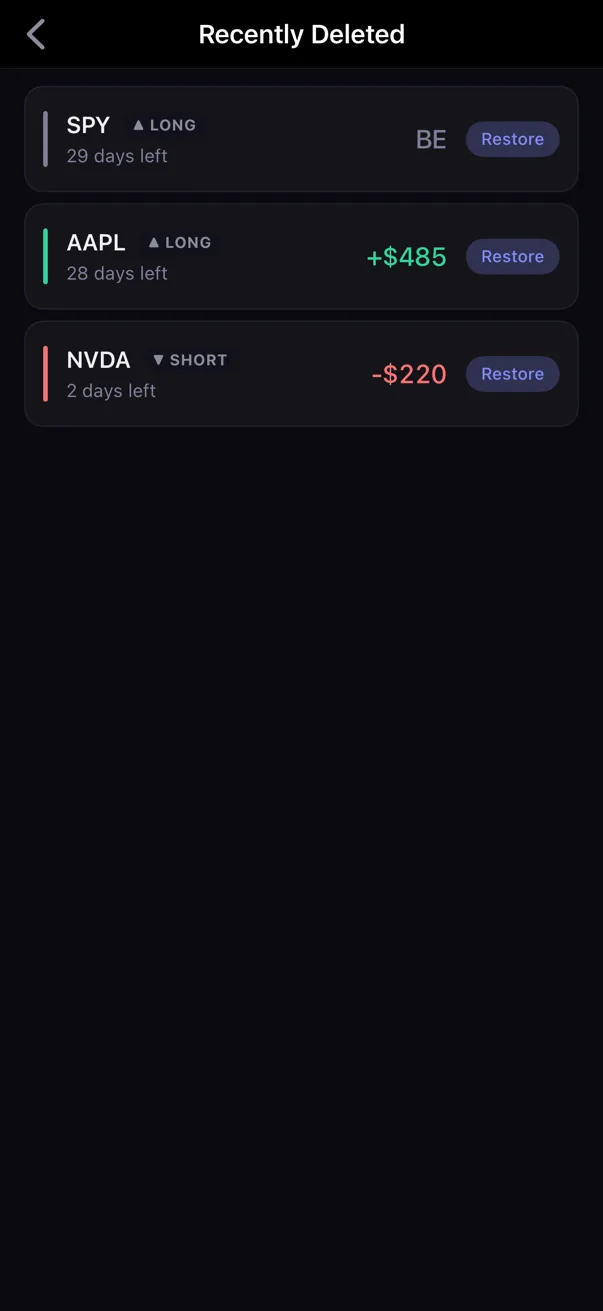
- Tap Recently Deleted.
- Find the trade you want back.
- Tap Restore. You can also swipe right on the row to reveal Restore.
The restored trade returns to your active journal. Kyra keeps deleted trades recoverable for 30 days; after that recovery window, they are permanently removed.
6. Permanently delete a recoverable trade
If you are certain you no longer need a deleted trade:
- Open Settings → Data → Recently Deleted.
- Swipe left on the deleted trade.
- Tap Delete Now.
- Confirm the permanent deletion.
Delete Now cannot be undone. Use Restore instead if there is any chance you still need the record.
If a trade is not where you expect
I edited a trade but cannot find the changed record
Return to Journal and clear any active search or filters. If you changed the trade date, it may have moved to a different day in List or Calendar.
I deleted a trade and the Undo action is gone
Open Settings → Data → Recently Deleted and restore the trade there. You do not need to enter it again while it is still inside the 30-day recovery window.
I do not see Recently Deleted in Settings
The Data section is hidden while Demo Mode is active. Exit Demo Mode and open Settings again.
Recently Deleted is empty
There are no currently recoverable deleted trades. A trade that was deleted more than 30 days ago is outside the recovery window and is permanently removed.
I permanently deleted the wrong trade
Delete Now is permanent. If you still have the original trade data elsewhere, log or import it again. If you are unsure what happened, email support@kyratrading.app and describe the steps you took. You do not need to send your trading history.
Verified against Kyra 1.6 (build 54), released August 20, 2026. The screenshots above are real Kyra captures from the released app surface.