The short version: Open Settings → scroll to Data → tap Export Trades → choose All trades or Date range → choose CSV or PDF → tap the export button → save or share the file from the iOS share sheet.
1. Open Export Trades
- Open Kyra.
- Open Settings.
- Scroll to the Data section.
- Tap Export Trades.
The Data section is hidden while Demo Mode is active. Exit Demo Mode first if you want to export your real journal.
2. Choose what to export
Under Scope, choose one of the released options:
- All trades — exports every active trade in the selected format.
- Date range — shows From and To controls so you can export only trades in that period.
Kyra shows the number of matching trades before you export. If the date range is invalid, or no active trades match the selection, the export action stays unavailable and the screen explains why.
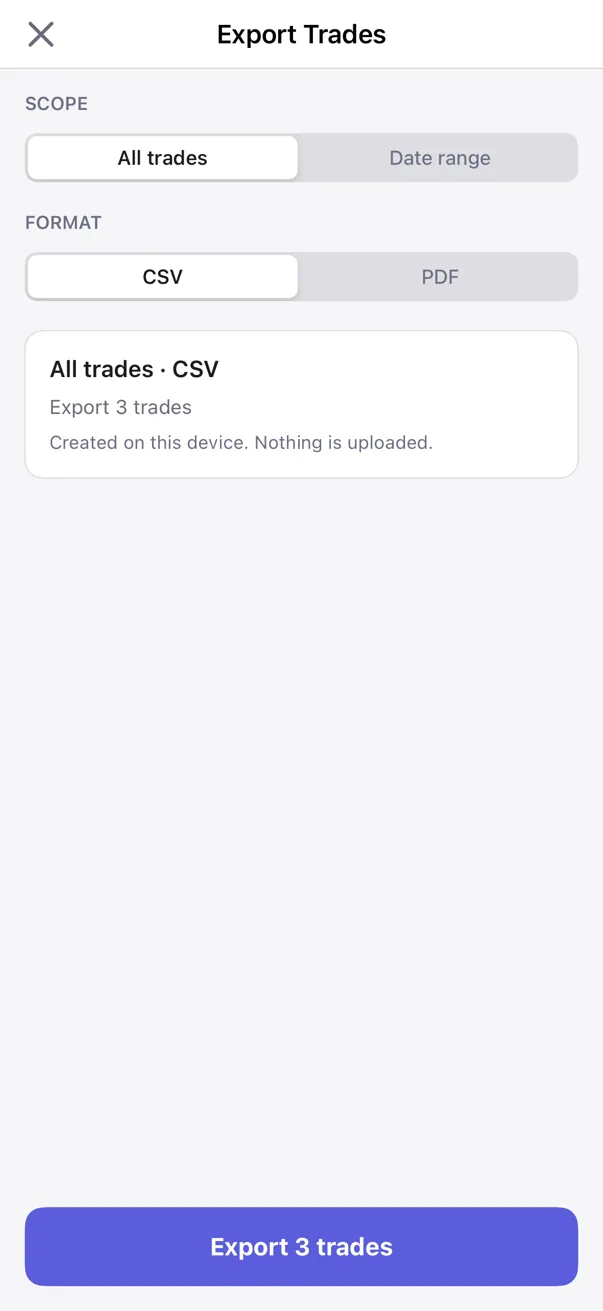
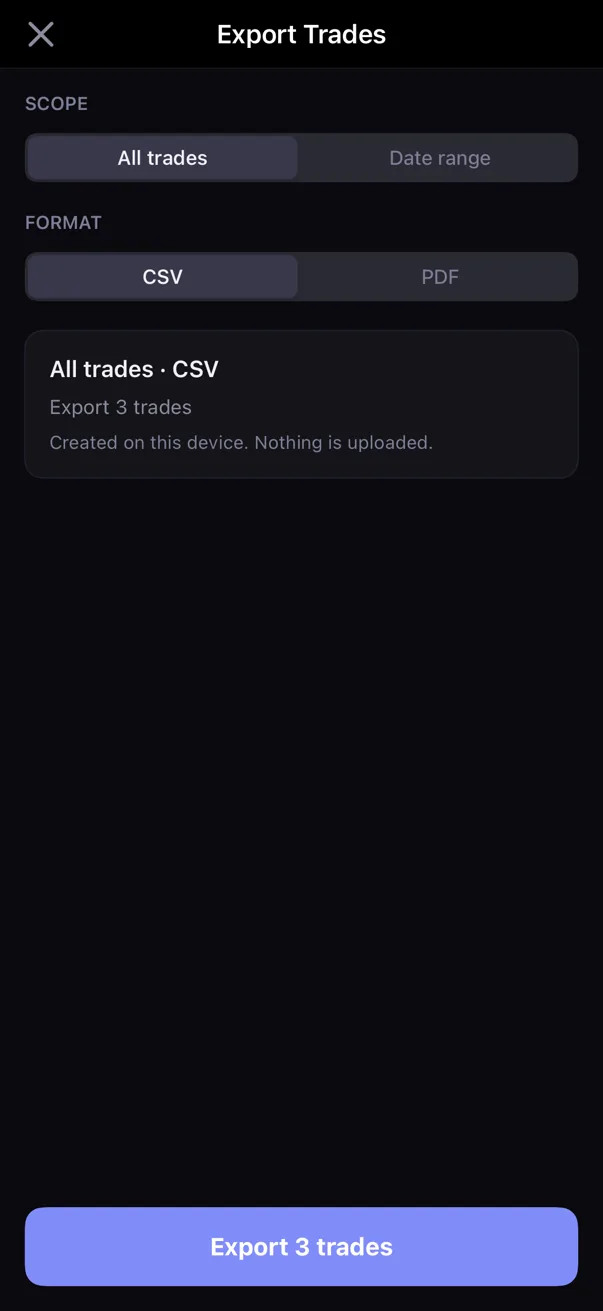
3. Choose CSV or PDF
Under Format, choose:
- CSV when you want a portable data file you can archive, inspect in a spreadsheet, or later re-import into compatible journal tooling.
- PDF when you want a human-readable report that is easier to read or share as a document.
Kyra creates the export on your device. The Export screen explicitly states: Created on this device. Nothing is uploaded.
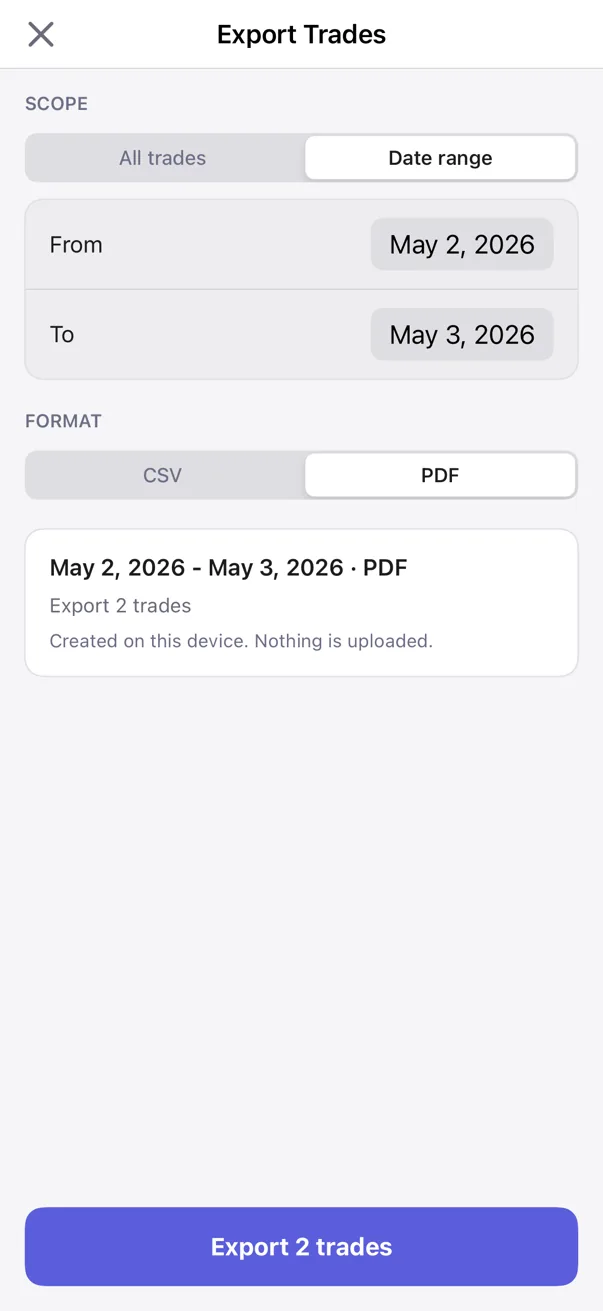
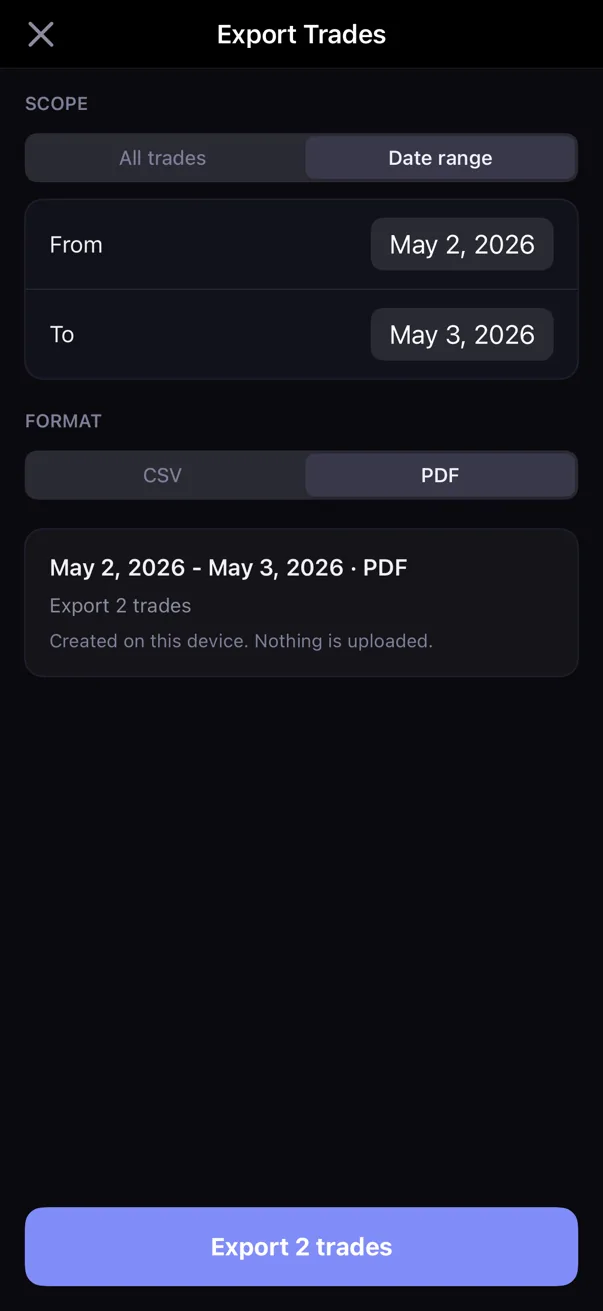
4. Export, then choose where the file goes
- Review the scope, format, and trade count.
- Tap Export 1 trade or Export N trades.
- Kyra opens the standard iOS share sheet.
- Choose where you want the file to go, such as Files, AirDrop, or another app available on your phone.
Kyra only shows an export-completed confirmation after the iOS share flow reports a real completion. Dismissing the share sheet is not treated as a successful export.
5. Know what v1.6 Export Trades includes
Export Trades works from your active, non-deleted trade records. A CSV includes the trade fields Kyra can serialize, including date, ticker, direction, prices and quantity when present, P&L, emotion, execution information, setup, trade notes, and timezone information.
Recently Deleted trades are not part of the active-trade export. Restore a trade first if you want it included.
Day Detail journal notes are not a separate export in Kyra 1.6. Export Trades covers trade records; it is not a full archive of every piece of journal state.
6. Understand iCloud Sync versus Export
Kyra stores your journal on device and can use private iCloud sync across your Apple devices. In Settings → Privacy & Security, the iCloud Sync row shows Active when iCloud is available to Kyra, or Unavailable with guidance to sign into iCloud.
An export and iCloud sync solve different jobs:
- iCloud sync keeps supported Kyra data available across devices through your private Apple account.
- CSV/PDF export gives you a file you deliberately save somewhere you choose.
If you want a portable copy you can see and control yourself, create an export rather than relying only on sync status.
7. On a new device, give iCloud time to finish
When Kyra is checking your private iCloud on a device, it can show Syncing from iCloud.... If the wait takes too long, Kyra can show Your journal is still syncing with a Try Again action.
If you expect existing trades to arrive, use Try Again rather than assuming an empty journal means the data is gone. Continue Without Syncing is the path for continuing without waiting for older iCloud data; do not use it as a recovery shortcut when you are expecting an existing journal.
8. If Kyra says the journal cannot be opened, do not reinstall
This is a different situation from a normal export or a slow first sync.
If Kyra shows Journal Needs Attention or Unable to Open Database, follow the recovery screen:
- Keep Kyra installed.
- Do not delete or reinstall the app as a troubleshooting step.
- Tap Save Recovery Package if the option is available.
- Save that package somewhere private.
- Contact support@kyratrading.app.
The Recovery Package is not the same as Export Trades. It exists for a journal-open failure and may contain recovery material such as trades, notes, and reflections.
If exporting does not work
I do not see the Data section
Check whether Demo Mode is active. Import, Export, and Recently Deleted are hidden in Demo Mode so sample data cannot be mistaken for your real journal.
The export button is disabled
Check the trade count and your date range. Kyra disables export when there are no matching active trades or when the selected date range is invalid.
I exported a file but cannot find it
The destination is controlled by the iOS share sheet. Export again and choose Save to Files if you want a predictable folder you can browse later.
A deleted trade is missing from my export
Export uses active trades. Restore the trade from Settings → Data → Recently Deleted, then create the export again.
I need my Day Detail notes outside Kyra
Kyra 1.6 does not provide a separate Day Detail note export. Do not assume the trade CSV/PDF contains those journal notes.
My new phone looks empty
If Kyra is still checking iCloud, use Try Again and allow the sync to continue. If Kyra reports that the local journal cannot be opened, use the Recovery Package path instead and do not reinstall.
Verified against Kyra 1.6 (build 54), released August 20, 2026. The paired screenshots are real Kyra 1.6 captures of the released Export Trades states in light and dark mode.