The short version: Open Today → tap the gear → find Privacy & Security → turn on Privacy Lock. Kyra then locks on every cold launch and re-locks after it has been in the background for about one minute.
1. Turn on Privacy Lock
- Open Today.
- Tap the gear in the top-right corner.
- Scroll to Privacy & Security.
- Turn on Privacy Lock.
Kyra performs a silent capability check before saving the toggle. It does not immediately show Face ID just because you turned the setting on; you are already inside the app.
If this iPhone has no available device-authentication method, Kyra keeps Privacy Lock off and shows Privacy Lock not enabled.
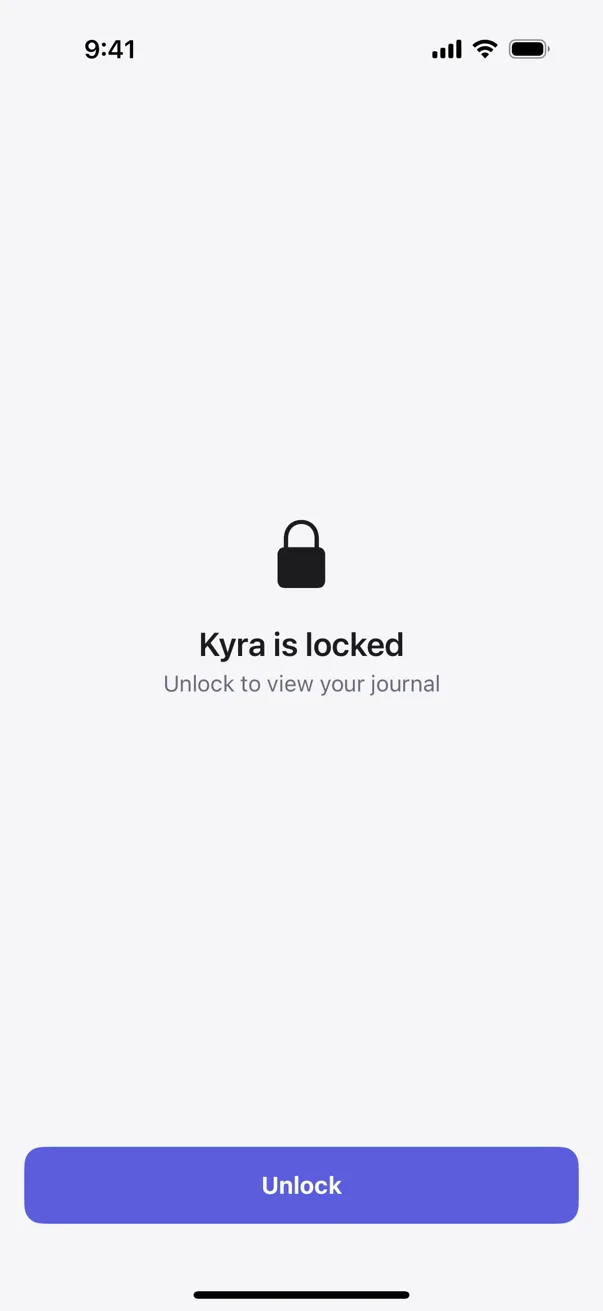
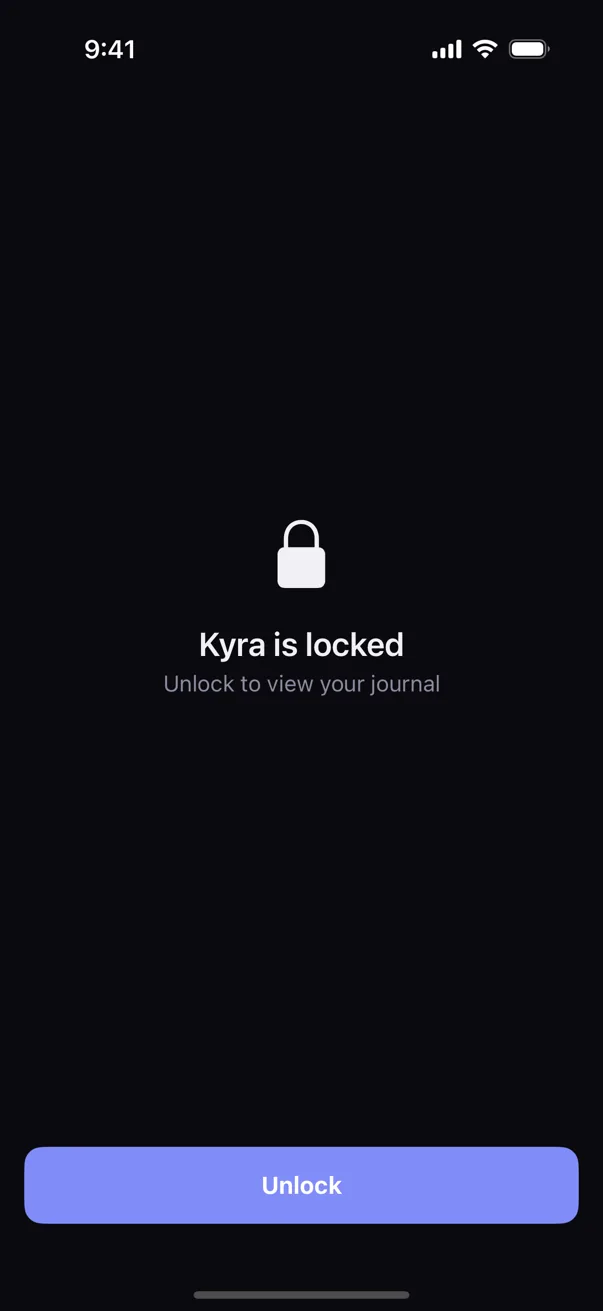
2. Unlock Kyra when the lock screen appears
The lock screen reads Kyra is locked and Unlock to view your journal.
- Tap Unlock.
- Complete the authentication prompt presented by iOS.
- Kyra reveals your journal after authentication succeeds.
Depending on your device setup, iOS can use Face ID, Touch ID, or the device passcode through the system authentication flow.
3. Know when Kyra locks again
Privacy Lock uses one fixed behavior rather than a timeout picker:
- Cold launch: Kyra locks every time the app starts from a fresh launch while Privacy Lock is enabled.
- Background return: Kyra re-locks after it has been in the background for about 60 seconds.
- Short interruptions: brief inactive states such as Control Center or a system authentication prompt do not start a fresh lock timer by themselves.
There is no user-facing Immediate / 1 minute / 5 minute timeout selector in Kyra 1.6.
4. App Switcher protection comes with Privacy Lock
When Privacy Lock is on, Kyra also shields the app while it is inactive or in the background so the multitasking thumbnail does not expose journal content.
There is no separate App Switcher switch. Turning Privacy Lock on enables both the active unlock gate and the passive App Switcher shield.
5. Kyra avoids locking you out on a device that cannot authenticate
If the Privacy Lock preference reaches another device but that device cannot evaluate device authentication, Kyra is designed to avoid a permanent lockout rather than trapping the journal behind an impossible prompt.
If you intentionally want Privacy Lock on that device, first configure device authentication in iOS, then enable Privacy Lock again inside Kyra.
6. Turn Privacy Lock off from Settings
Open Settings → Privacy & Security and turn Privacy Lock off. Future cold launches and background returns will no longer show Kyra's lock screen, and the App Switcher shield is disabled with it.
If Privacy Lock does not work as expected
The toggle immediately turns back off
Kyra could not confirm that this device can unlock later. Make sure Face ID, Touch ID, or a device passcode is available in iOS, then try again.
I switched apps briefly and Kyra did not lock
That can be expected. Kyra's foreground re-lock window is about 60 seconds so quick switches between trading tools do not constantly force another authentication.
I returned later and Kyra asked me to unlock
That is the intended behavior once the background interval crosses the re-lock threshold.
I do not see a separate App Switcher privacy option
There is none. App Switcher shielding is bundled with Privacy Lock.
Authentication keeps failing
The authentication prompt itself is controlled by iOS. Confirm that your device-authentication method works outside Kyra. If Kyra still cannot unlock after device authentication is working, contact support@kyratrading.app.
Verified against Kyra 1.6 (build 54), released August 20, 2026. The screenshots above are real released-app captures with light/dark parity.